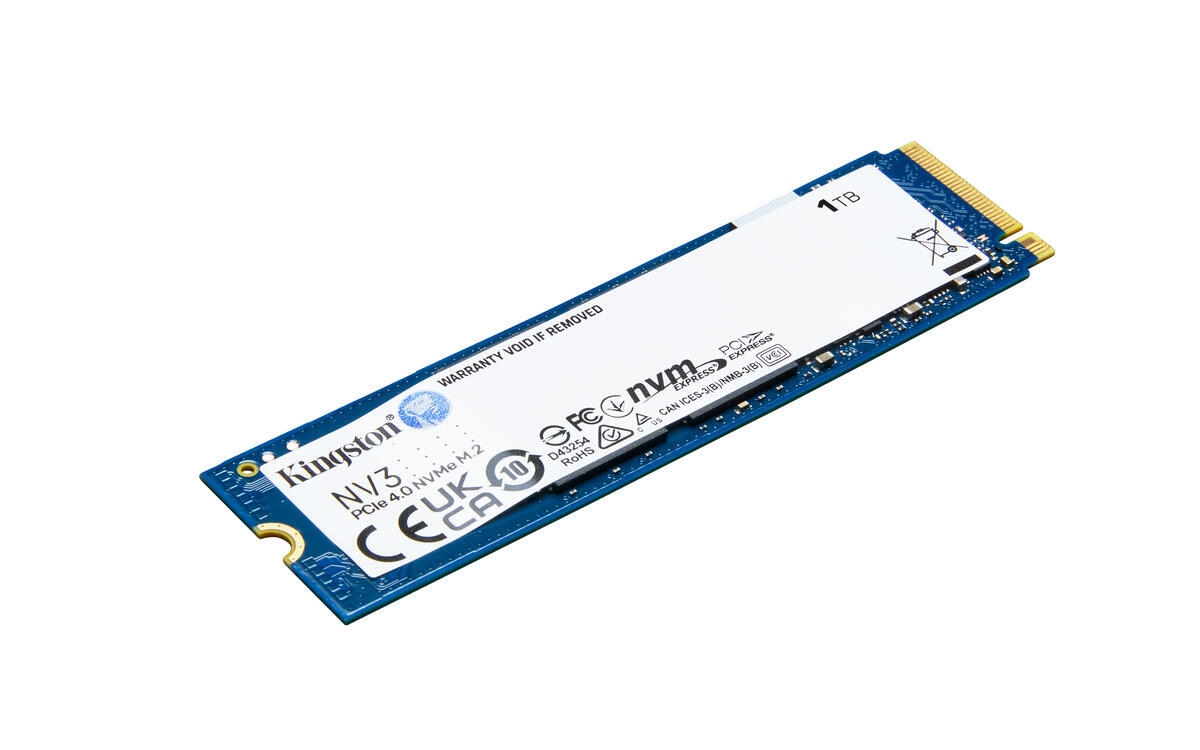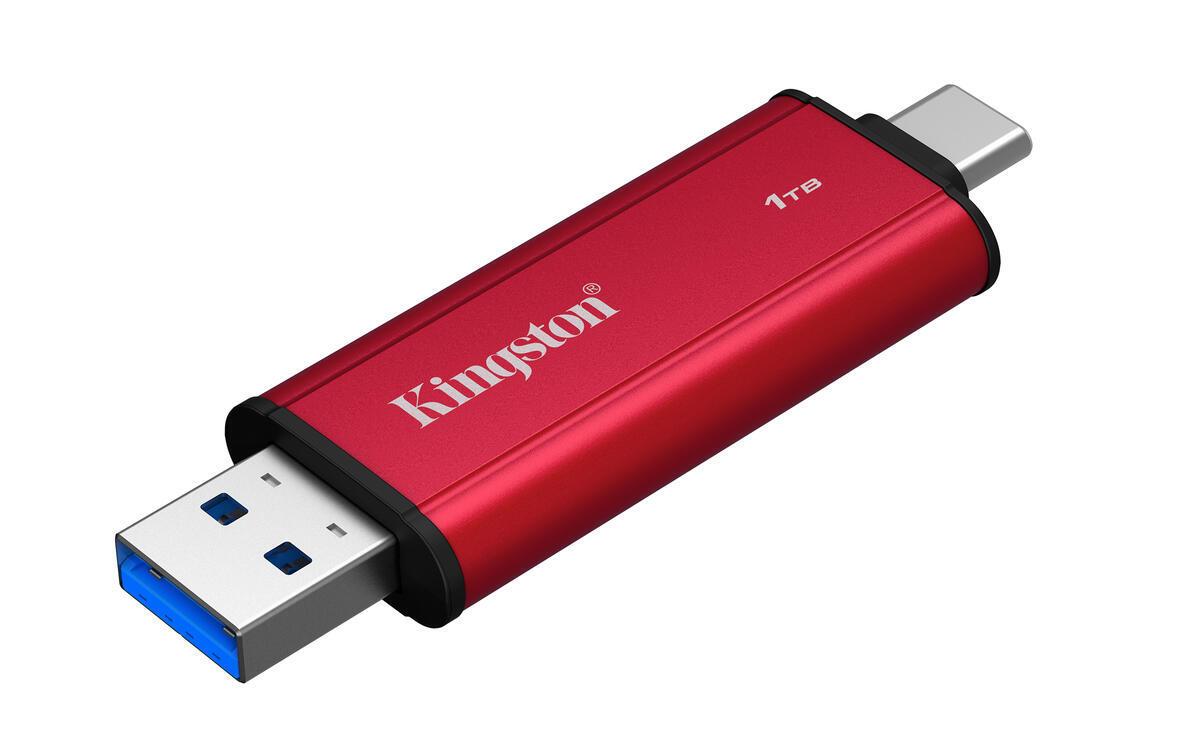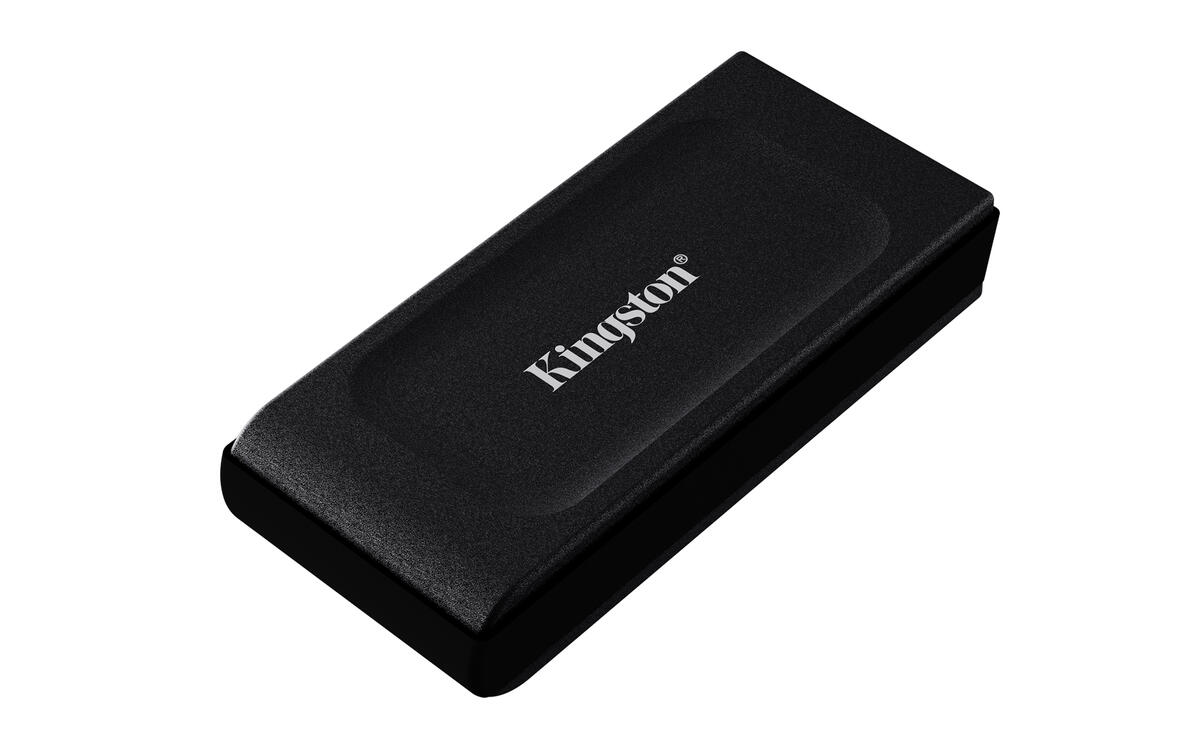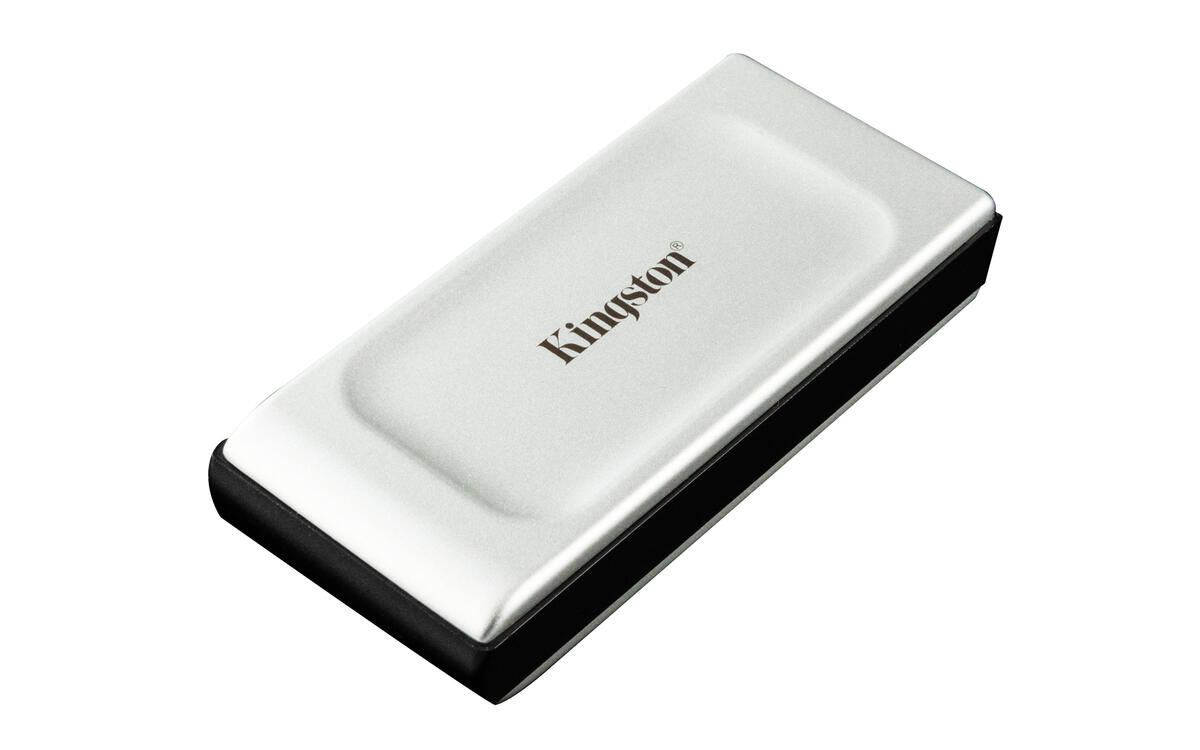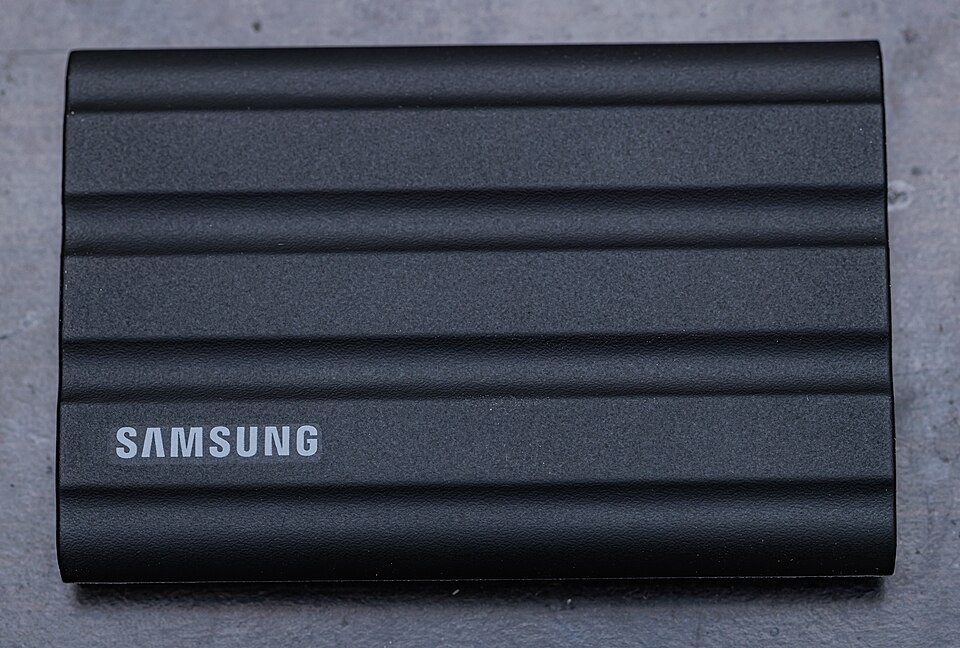
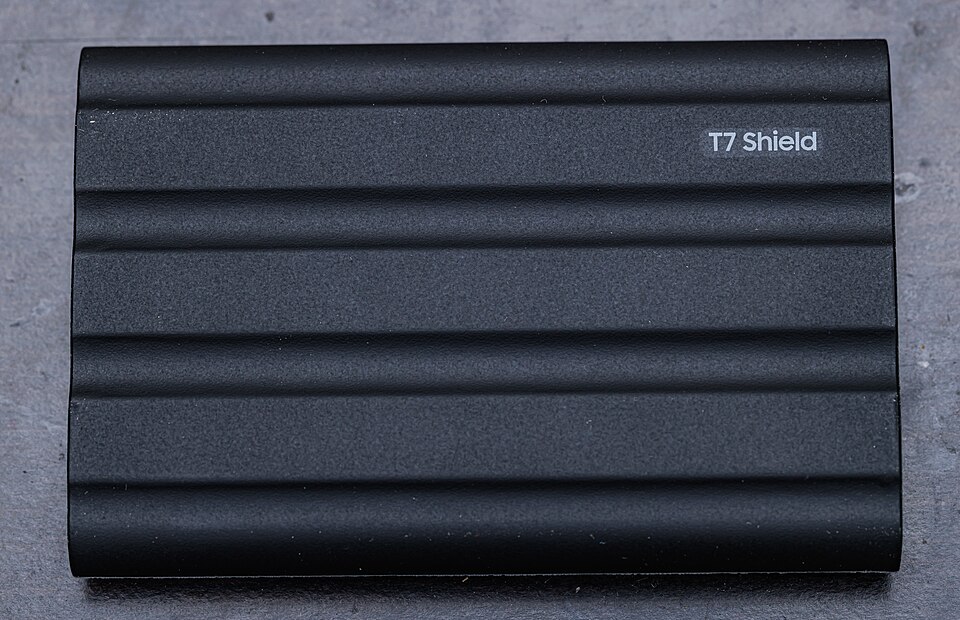
Photos: black 4 TB T7 Shield. The Amazon link targets the blue 2 TB model; colour and capacity differ.
PC / Computers · Storage
Not tested by JessSamsung T7 Shield 2 TB
A 2 TB external SSD for moving files between compatible computers without opening the computer.
Linked model: 2 TB, blue, MU-PE2T0R/AM.
- USB 3.2 Gen 2 connection (10 Gbps)
- Linked variant: 2 TB, blue
Affiliate link · Check the model and options on Amazon.ca.
Affiliate links: JessDeals may earn a commission on qualifying purchases at no additional cost to you. As an Amazon Associate I earn from qualifying purchases.
See photos and details at the source ↗The model from other angles
Before choosing this model
Your needs first
First choose between an external drive and an internal installation. Keep multiple copies of important files regardless of the model.
The deciding check
Performance depends on the port and cable. Check the selected capacity; an external drive alone is not a complete backup strategy.
Compatibility and setup
Details that change the choice
- Connection
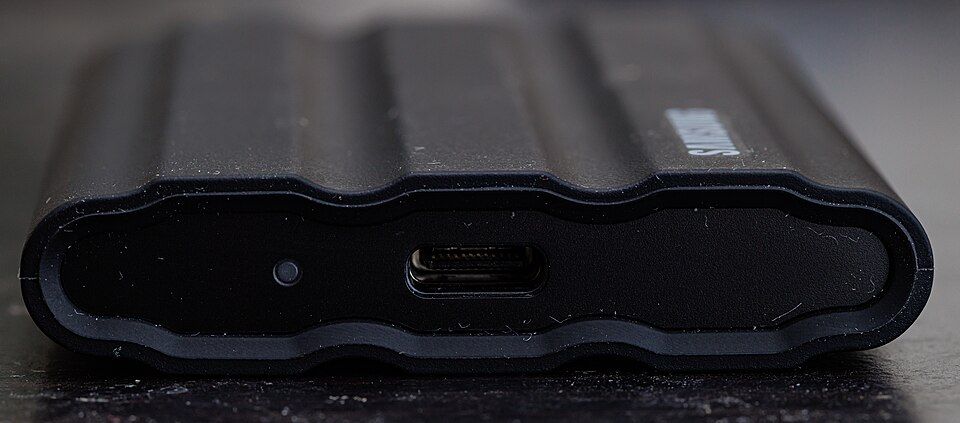
- USB 3.2 Gen 2 external SSD. The port and cable can limit transfers; a USB-C connector alone does not guarantee speed.
- What to prepare
- The manual lists USB-C to USB-C and USB-C to USB-A cables. Confirm the package contents and keep another copy of important files.
- Avoid mix-ups
- T7 Shield is not T7 Touch. Also check the linked variant’s capacity and never reformat a drive holding your only copy of files.
Is an external SSD enough for my backup?
Moving files to this SSD without keeping the originals leaves one copy. Arrange at least one other independent copy, then test restoring a few files before relying on your process.
Guidance based on manufacturer documentation checked on October 5, 2026. Also verify the variant being sold. Manufacturer documentation ↗
Other options to compare
Two SSDs for carrying files
Compare the exact capacity, cable and your backup process before advertised speeds.
Kingston XS1000
To examine the portable format and USB accessories of the chosen variant.
Compare these two models →Prepare your setup
Three useful checks
- Identify the available port and choose the appropriate cable.
- Check that the drive format works with the operating systems you will use.
- Copy a few files and reopen them before deleting another copy.
The right use
Who it is for
For carrying a project library or keeping a separate copy of documents. Check the computer port and cable: the USB-C shape alone does not specify speed.
Limitations to consider
Who should consider another option
This external drive is not a direct replacement for an internal SSD. A single copy, even on a portable drive, does not protect files against loss or mistakes.
Editorial selection · Not tested by Jess · Feature sources are listed below.
View the specification source ↗